
How to Connect Google Sheets with n8n (Quick Guide)
Connecting Google Sheets with n8n allows you to automatically store, update, and manage data without manual work. You can use it for lead tracking, sales logging, reports, affiliate records, and more.
Here’s the simple step-by-step process.
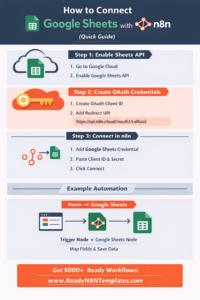
How to Connect Google Sheets
Step 1: Enable Google Sheets API
Go to Google Cloud Console
Create a new project
Open APIs & Services → Library
Search for Google Sheets API
Click Enable
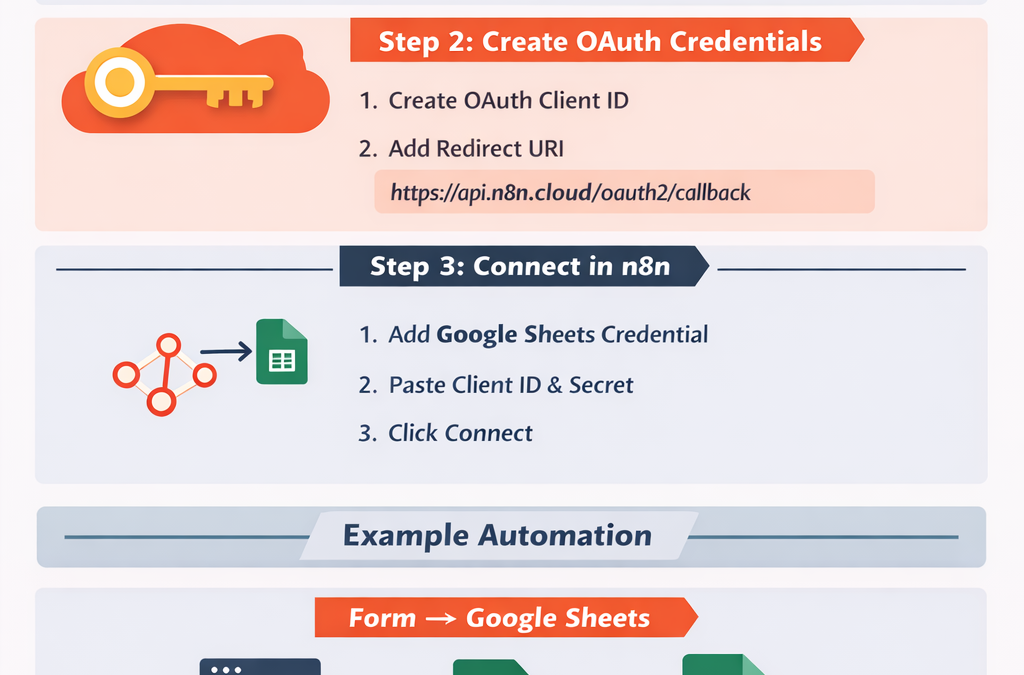
Step 2: Create OAuth Credentials
Go to APIs & Services → Credentials
Click Create Credentials → OAuth Client ID
Choose Web Application
Add Redirect URI:
For self-hosted n8n:
https://yourdomain.com/rest/oauth2-credential/callback
For n8n cloud:
https://api.n8n.cloud/oauth2/callback
Copy the Client ID and Client Secret
Step 3: Connect in n8n
Go to your n8n dashboard
Click Credentials → New Credential
Select Google Sheets OAuth2 API
Paste Client ID and Secret
Click Connect and approve access
Your Google Sheets is now connected to n8n.
Example Automation
Form Submission → Google Sheets
Add a Trigger node (Webhook or Form)
Add a Google Sheets node
Select “Append” operation
Map fields to columns
Activate workflow
Now every new submission will automatically be saved in your sheet.
Why Use This?
With n8n + Google Sheets you can:
Track leads automatically
Log Stripe payments
Manage affiliate commissions
Create automated dashboards
Store business data without coding
If you want ready-made workflows instead of building from scratch, explore:
👉 www.readyn8ntemplates.com
5000+ ready-to-use n8n automation templates.