
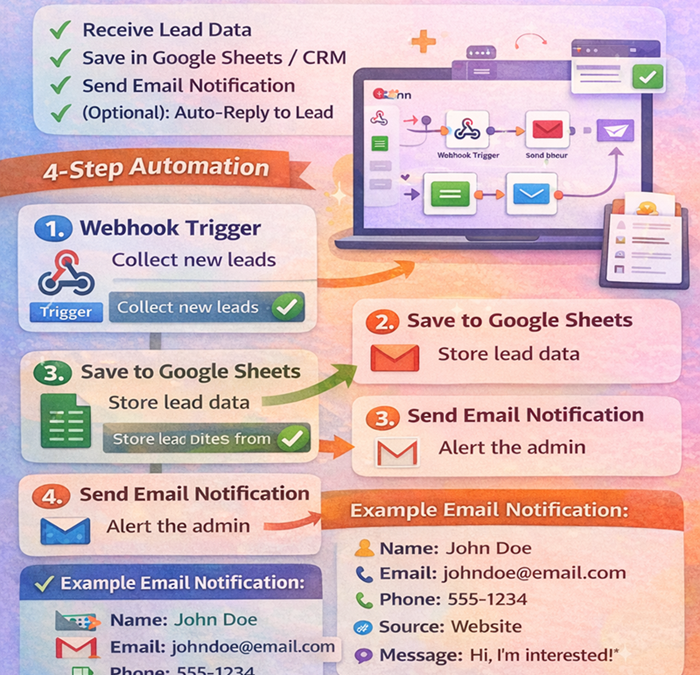
n8n for Lead Collection + Email Notification (Beginner Workflow Guide)
If you collect leads from a website form (Contact Form, Elementor, WPForms, Typeform, Google Form, etc.), you can automate everything with n8n—so every new lead is saved and you instantly get an email notification.
This guide shows a simple, reliable workflow you can build in n8n.
What This Automation Will Do
✅ When a new lead is submitted, n8n will:
Receive the lead (Name, Email, Phone, Message)
Save it (Google Sheets / Airtable / CRM)
Send you an email notification
(Optional) Send an auto-reply to the lead
Best Ways to Collect Leads (Choose One Trigger)
Option A: Webhook Trigger (Most Popular)
Use this if your form tool can send data to a webhook:
WordPress (custom webhook / form plugin)
Landing page forms
Any system with “Webhook” integration
Option B: Google Sheets Trigger
Use this if your lead form saves submissions to Google Sheets first.
Option C: Gmail Trigger
Use this if leads come via email (contact@yourdomain.com).
For most websites, Webhook Trigger is the best and fastest.
Workflow Setup (Webhook → Save → Email)
Step 1: Add a Webhook Trigger Node
n8n template
Email Notification,
Choose: Webhook
Method: POST
Path: new-lead (example)
Click Test URL to get the test webhook link
Now your form should send lead data to this URL.
Step 2: Add a Set Node (Clean & Format Data)
This is important so your workflow stays organized.
Example fields to set:
name
phone
source (Facebook / Website / Landing page)
message
created_at (optional)
This helps you map data easily in later nodes.
Step 3: Save Lead to Google Sheets (or Airtable)
Google Sheets Node:
Action: Append Row
Choose Spreadsheet + Sheet Tab
Map fields like:
Name → {{$json.name}}
Email → {{$json.email}}
Phone → {{$json.phone}}
Message → {{$json.message}}
Time → {{$json.created_at}}
✅ Now every lead is stored automatically.
Step 4: Send Email Notification to Admin
Use any email method you prefer:
Gmail node (easy)
SMTP node (works with any email hosting)
SendGrid/Mailgun (best deliverability)
Example Email Content:
Subject: New Lead Received: {{$json.name}}
Body:
Name: {{$json.name}}
Email: {{$json.email}}
Phone: {{$json.phone}}
Source: {{$json.source}}
Message: {{$json.message}}
✅ You’ll get an email instantly for every new lead.
Optional (Recommended): Auto-Reply to Lead
Add a second email node after saving:
To: {{$json.email}}
Subject: Thanks! We received your message ✅
Body:
Hi {{$json.name}},
Thanks for contacting us. We received your message and will reply soon.
— Your Company Name
This improves trust and increases conversion.
Add Spam Protection (Smart Tip)
To reduce fake leads:
Add an IF Node:
If email contains “test” or empty fields → stop workflow
If phone is too short → stop
If message contains spam keywords → stop
Also add Google reCAPTCHA on your form if possible.
Testing Checklist (Before You Activate)
✅ Send a test form submission
✅ Confirm data arrives in n8n execution
✅ Check row added in Google Sheets
✅ Confirm email notification received
✅ Activate workflow and use Production webhook URL