
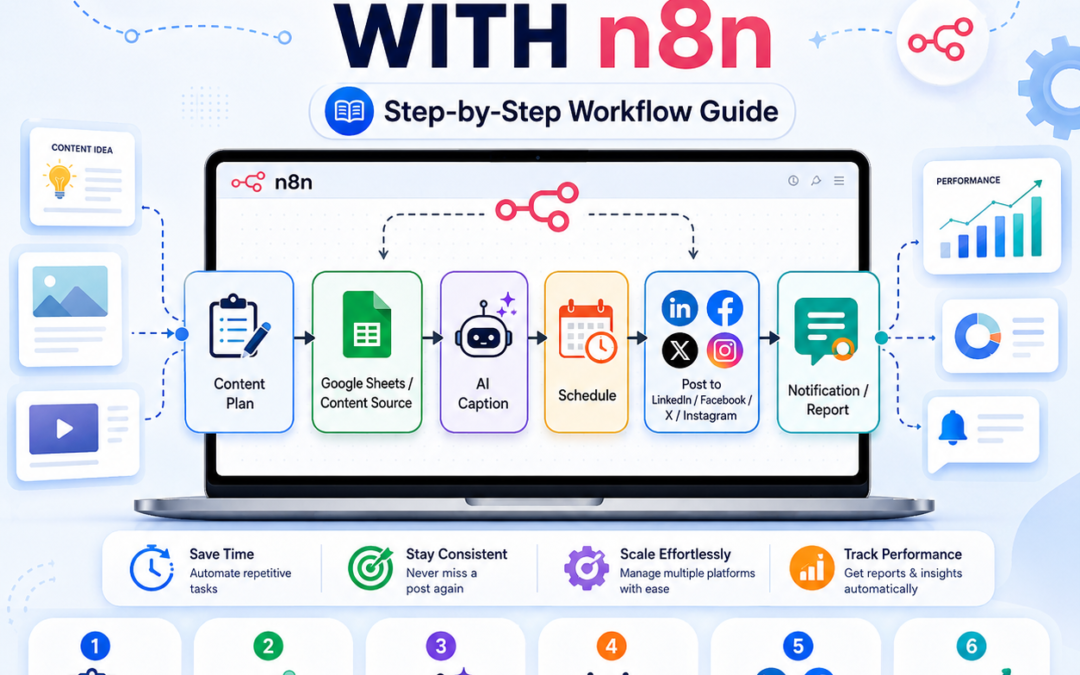
How to Automate Your Social Media with n8n: Step-by-Step Guide
Social media marketing takes time. You need to create posts, write captions, choose images, publish at the right time, and stay consistent. But with n8n, you can automate many of these tasks and save hours every week.
n8n is a workflow automation tool that lets you connect apps, APIs, AI tools, spreadsheets, and social media platforms in one workflow. Its official docs describe it as a workflow automation platform that combines automation with AI capabilities.
Automate social media with n8n
What Is Social Media Automation with n8n?
Social media automation means using n8n to automatically prepare, schedule, and publish content on platforms like LinkedIn, X/Twitter, Facebook, Instagram, Pinterest, or other channels.
For example, you can create a workflow like this:
Google Sheet → AI Caption Generator → Image URL → Social Media Post → Notification
This means you can add your post ideas into a spreadsheet, and n8n can help prepare and publish them automatically.
Step 1: Plan Your Social Media Workflow
Before opening n8n, decide what you want to automate.
You can automate:
- Daily social media posts
- Blog post sharing
- Product promotion posts
- LinkedIn updates
- X/Twitter short posts
- Facebook page posts
- Instagram content planning
- AI-generated captions
- Hashtag creation
- Post approval system
- Email or Telegram notification after posting
Example workflow idea:
Every morning at 9 AM, n8n checks a Google Sheet. If a new post is available, it creates a caption, posts it to LinkedIn, and sends you a confirmation message.
Step 2: Prepare Your Content Source
You need a place where your content will come from. The easiest option is Google Sheets.
Create a sheet with columns like:
| Date | Platform | Title | Caption | Image URL | Status |
|---|---|---|---|---|---|
| 2026-05-26 | Excel Tips | Learn Excel faster… | image-link | Ready |
This sheet will work like your social media content calendar.
You can also use:
- Airtable
- Notion
- WordPress blog posts
- WooCommerce products
- RSS feed
- CSV file
- n8n form submission
Step 3: Create a New Workflow in n8n
Log in to your n8n dashboard and create a new workflow.
Your workflow needs a trigger. A trigger is the starting point of the automation. n8n supports manual triggers and automatic triggers, including scheduled triggers. The official n8n docs explain that trigger nodes start a workflow manually or automatically based on your settings.
For social media automation, the best trigger is usually:
Schedule Trigger
This lets your workflow run daily, weekly, hourly, or at a specific time.
Step 4: Add a Schedule Trigger
Add the Schedule Trigger node.
Example settings:
- Run every day
- Time: 9:00 AM
- Timezone: Your target audience timezone, such as New York time for US audience
The Schedule Trigger node is designed to run workflows at fixed intervals and times, similar to a cron job. n8n also notes that scheduled workflows must be saved and published to run automatically.
This is useful if you want to post every day without logging in manually.
Step 5: Connect Your Content Sheet
Now connect your content source.
For example, if you use Google Sheets:
- Add a Google Sheets node.
- Connect your Google account.
- Select your spreadsheet.
- Read rows where the status is “Ready.”
- Pick the post scheduled for today.
n8n uses credentials to authenticate different apps and services. Its credentials library provides authentication guidance for built-in nodes.
This keeps your accounts connected safely inside n8n.
Step 6: Generate Caption with AI
You can make your workflow smarter by adding an AI step.
Example prompt:
“Write a short professional LinkedIn post about this topic: {{$json.title}}. Make it helpful, friendly, and include 5 hashtags.”
The AI can create:
- LinkedIn posts
- X/Twitter posts
- Facebook captions
- Instagram captions
- Hashtags
- Call-to-action text
- Short promotional copy
Example output:
“Want to save time with Excel? Start using ready-made templates to manage your budget, sales, reports, and daily work faster. Smart tools help you work better, not harder. #ExcelTips #Productivity #BusinessTools”
Step 7: Add Platform-Specific Rules
Every social media platform has a different style.
For example:
LinkedIn: Professional, helpful, business-focused
Facebook: Friendly and easy to read
X/Twitter: Short, direct, catchy
Instagram: Visual, emotional, hashtag-friendly
Pinterest: Keyword-rich and image-focused
In n8n, you can use an IF node or Switch node to send each post to the correct platform.
Example:
- If platform = LinkedIn → Send to LinkedIn node
- If platform = X → Send to HTTP Request/API
- If platform = Facebook → Send to Facebook page API
- If platform = WordPress → Publish as blog/social update
Step 8: Publish to LinkedIn or Other Social Platforms
n8n has a LinkedIn node that can automate LinkedIn work and supports creating posts.
For platforms that do not have a simple built-in node, you can use the HTTP Request node. The HTTP Request node lets n8n make REST API calls to external apps and services.
Common publishing methods:
- Built-in social media node
- HTTP Request node
- Social media scheduling API
- Webhook connection
- Third-party tools like Buffer, Publer, or similar tools
Important: Some platforms have strict API rules. Always use official API access and follow each platform’s policy.
Step 9: Add Image or Media Support
Social media posts perform better with images.
You can store image links in your Google Sheet, for example:
| Title | Caption | Image URL |
|---|---|---|
| Excel Automation Tips | Save time with Excel… | https://example.com/image.jpg |
Then n8n can pick the image URL and attach it to your post.
You can use images from:
- WordPress media library
- Cloud storage
- Google Drive
- Canva export links
- Product image URL
- Blog featured image
For your website, you can create posts like:
“Download useful n8n workflow templates from www.readyn8ntemplates.com and save time with automation.”
Step 10: Update Post Status After Publishing
After publishing, update your content sheet automatically.
For example:
- Change status from Ready to Posted
- Add published date
- Add platform name
- Add post URL if available
This helps you avoid duplicate posting.
Your sheet can look like this:
| Date | Platform | Caption | Status |
|---|---|---|---|
| 2026-05-26 | Posted content here | Posted |
Step 11: Send Yourself a Notification
After the post is published, add a notification step.
You can send alerts to:
- Telegram
- Slack
- Discord
- WhatsApp API
- Gmail
Example notification:
“Your LinkedIn post has been published successfully.”
This helps you monitor your automation without checking n8n every time.
Step 12: Add Error Handling
Automation is powerful, but sometimes APIs fail.
Common problems:
- Invalid credentials
- Expired API token
- Missing image URL
- Social media rate limit
- Wrong content format
- Internet/API issue
n8n’s HTTP Request docs mention 429 errors when a service receives too many requests, often because of rate limits. n8n suggests batching requests or enabling retry on fail for this type of issue.
Best practice:
- Add retry settings
- Add error notification
- Keep a log sheet
- Test with one platform first
- Do not post too frequently
Example n8n Social Media Automation Workflow
Here is a simple workflow structure:
Schedule Trigger
↓
Google Sheets: Read Ready Posts
↓
IF Node: Check Today’s Date
↓
AI Node: Generate Caption
↓
LinkedIn / HTTP Request Node: Publish Post
↓
Google Sheets: Update Status to Posted
↓
Email/Telegram: Send Confirmation
This workflow can help you post consistently without doing everything manually.
Best Content Ideas to Automate with n8n
You can automate many types of social media posts:
- Daily business tips
- Excel tips
- n8n automation tips
- Product promotion posts
- Blog post sharing
- Affiliate marketing posts
- Motivational quotes
- Customer review posts
- New template announcements
- Weekly educational posts
For example, for www.readyn8ntemplates.com, you can automate posts like:
“Save hours every week with ready-made n8n automation templates. Explore useful workflows for marketing, business, productivity, and AI automation.”
Benefits of Automating Social Media with n8n
Using n8n for social media automation can help you:
- Save time
- Post consistently
- Reduce manual work
- Reuse content easily
- Connect AI with marketing
- Manage multiple platforms
- Track posted content
- Build a simple content system
- Promote your products automatically
For small businesses, bloggers, digital product sellers, and marketers, n8n can become a powerful automation assistant.