
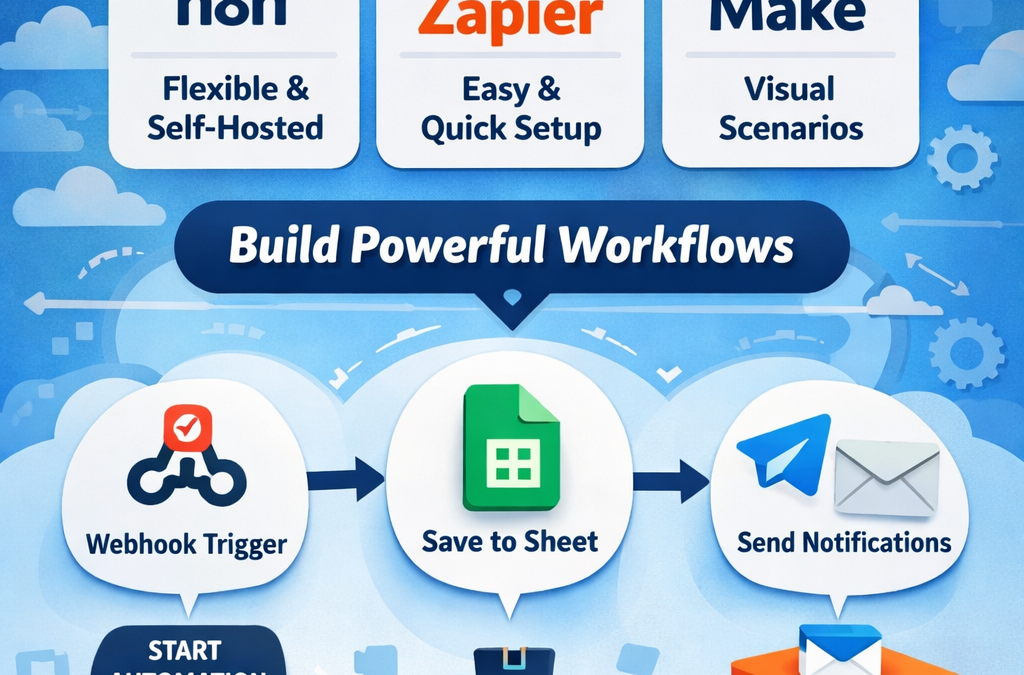
How is n8n Different from Zapier or Make
n8n, Zapier, and Make all automate work—but they feel very different once you start building real workflows.

1) Flexibility & Control
n8n: Most flexible. You can build complex logic, branching, custom code, and advanced data handling.
Zapier: Easiest and fastest for simple “if this then that” automations.
Make (Integromat): Powerful visual builder with strong data tools, but can get complex fast.
2) Pricing / Ownership
n8n: Can be self-hosted, so you control your data and costs (great for long-term).
Zapier: Cloud-only and pricing increases quickly with high usage.
Make: Cloud-based pricing is often cheaper than Zapier for medium usage, but still usage-based.
3) Best Use Cases
n8n: Best for advanced workflows, APIs, webhooks, custom logic, and businesses that want control.
Zapier: Best for beginners and quick automations (email → sheet → Slack).
Make: Best for visual scenarios, routing, and data transformation with a lot of built-in tools.
4) Technical Level
n8n: Beginner-friendly but becomes very powerful when you learn expressions and logic.
Zapier: Most beginner-friendly.
Make: Medium learning curve, more “technical” than Zapier.
Simple conclusion:
✅ Choose Zapier for quick and simple automations.
✅ Choose Make for advanced visual scenarios with strong data tools.
✅ Choose n8n for maximum power, customization, and control (especially if you want to build serious automations or self-host).
How to Work with n8n: A Beginner Learning Guide (Step-by-Step)
If you’re starting with n8n, the best way to learn is to understand the basics and then build 2–3 simple workflows. This article will guide you from zero to your first working automation.
What is n8n?
n8n is a workflow automation tool that helps you connect apps and automate tasks using a visual builder.
A workflow usually looks like:
Trigger → Actions → Result
Example:
New form submission (Trigger)
Save data to Google Sheets (Action)
Send email/Telegram message (Action)
Why Use n8n for Daily Work?
n8n helps you:
Save time by removing repetitive tasks
Prevent mistakes caused by manual data entry
Connect apps that don’t talk to each other
Automatically send messages and notifications
Build a reliable system for business operations
n8n Basics You Must Know
1) Workflow
A workflow is your full automation with connected steps.
2) Nodes
Nodes are the steps you add. Example:
Google Sheets
Gmail
Telegram
HTTP Request
IF / Switch / Set
3) Trigger Node
The node that starts your workflow:
Schedule Trigger (every hour/day)
Webhook Trigger (real-time)
App triggers (new email, new row)
4) Execution
Every run creates an execution log where you can debug and see outputs.
Step-by-Step: Build Your First n8n Workflow (Easy Practice)
Let’s build a beginner workflow:
✅ Webhook → Save data → Send notification
Step 1: Create a Workflow
n8n dashboard → New Workflow
Step 2: Add Webhook Trigger
Add node → Webhook
Copy the webhook URL
This URL will receive data from forms/apps/websites
Step 3: Add a “Set” Node
Use Set node to:
pick only the important fields
rename fields cleanly (name, email, message)
Step 4: Save to Google Sheets
Add node → Google Sheets
Append row
Map fields from webhook output
Step 5: Send a Telegram or Email Alert
Add node → Telegram or Gmail
Message: “New lead received from {{name}} – {{email}}”
Step 6: Test the Workflow
Click Execute Workflow
Send test data to webhook
Check output in each node
Step 7: Activate It
Click Active
Now your workflow runs automatically.
Data Mapping in n8n (Most Important Skill)
n8n passes data as JSON.
Common expressions:
{{$json.name}}
{{$json.email}}
If a value is missing, you can set a fallback like:
{{$json.email || “no email”}}
Add Logic (Make Workflows Smart)
IF Node Example
If country = Bangladesh → send Bengali message
Else → send English message
Switch Node Example
If “plan = basic” → normal response
If “plan = premium” → VIP response
Best n8n Workflow Ideas for Beginners
Contact form → Google Sheets → Email alert
Stripe payment → Telegram notification
WooCommerce order → Save to sheet + send email
Daily scheduled report → Send email summary
Gmail attachment → Save file to Google Drive
Common Beginner Mistakes
Workflow not activated
Credentials not set properly
Mapping wrong field names
Not checking execution logs
Not handling empty values
Final Tips to Learn Faster
Start with Schedule Trigger + simple actions
Learn Webhooks after you’re comfortable
Practice with real tasks from your own work
Save workflows as templates for reuse